
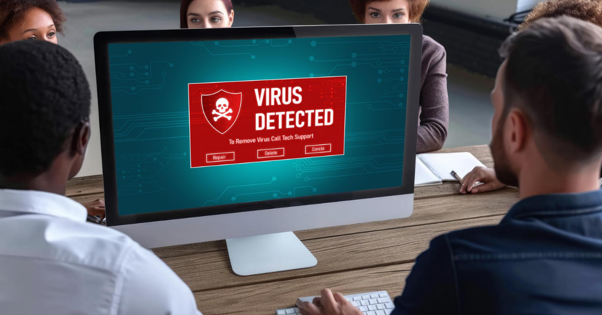
A computer that suddenly slows down, displays unwanted pop ups, or opens unfamiliar programs can leave you wondering what went wrong. Sometimes, these problems point to a computer virus or another type of malware. Acting early can help protect your personal information, prevent further damage, and restore your computer’s normal performance. Computer virus removal services can help identify the source of these issues, remove harmful software, and improve your device’s security.
In this guide, we explain what computer viruses are, which warning signs you should watch for, and how professional virus and malware removal service providers can help. We also share practical steps you can take if you suspect your computer has been infected.
Table of Contents
1. What Is the Difference Between a Computer Virus and Malware?
2. What Warning Signs Mean You May Need Computer Virus Removal Services?
3. How Do Computer Virus Removal Services Work?
4. How Can You Check Your Computer for Viruses and Malware?
5. What Should You Do If Your Computer Is Infected with a Virus?
6. Protect Your Computer Before a Small Problem Becomes a Bigger One
1. What Is the Difference Between a Computer Virus and Malware?
A computer virus is a type of malicious software that can attach itself to files or programs and spread when an infected file runs or gets shared. Malware is a broader term for software designed to harm a device, steal information, disrupt operations, or gain unauthorized access.
Understanding the difference helps you recognize why a computer may need more than a basic antivirus scan.
Common types of malware include:
● Viruses: Attach themselves to files or programs and may spread when those files run.
● Trojans: Disguise themselves as legitimate software to trick users into installing them.
● Ransomware: Locks or encrypts files and may demand payment for their recovery.
● Spyware: Secretly monitors activity or collects information.
● Adware: Displays unwanted advertisements and may redirect your browser.
● Worms: Spread across systems or networks without needing to attach themselves to another file.
Not every computer problem indicates an infection. An aging hard drive, outdated software, insufficient memory, or too many startup programs can also cause performance issues. That is why we recommend identifying the actual cause before attempting repairs.
2. What Warning Signs Mean You May Need Computer Virus Removal Services?
Malware does not always announce its presence. Some infections cause obvious problems, while others operate quietly in the background. Recognizing unusual changes can help you respond before the situation becomes more serious.
Here are seven warning signs worth taking seriously.
1. Why Has Your Computer Suddenly Become Slow?
If your computer takes much longer to start, freezes during simple tasks, or runs unusually slowly, investigate the cause. Malware can consume processing power and memory, although legitimate applications and hardware issues can produce similar symptoms.
2. Why Are You Seeing Unwanted Pop Ups and Browser Redirects?
Unexpected advertisements, unfamiliar browser extensions, and repeated redirects to suspicious websites may indicate adware or unwanted software. Avoid clicking these pop ups, especially when they claim your computer is infected and demand immediate payment.
3. Why Are Unknown Programs Running on Your Computer?
New applications, unfamiliar processes, or programs launching without your permission deserve attention. Do not delete random system files because some legitimate processes may have unfamiliar names. A proper security scan can help determine what belongs on your device.
4. Why Is Your Security Software Disabled?
Some malware attempts to interfere with security tools or prevent updates. If your antivirus suddenly stops working or you cannot access security settings, investigate the problem promptly.
5. Why Are Your Files Missing or Difficult to Open?
Missing files, unexpected file extensions, or documents that will not open can indicate several problems, including ransomware. If you suspect ransomware, disconnect the affected device from networks and avoid experimenting with recovery tools that might make matters worse.
6. Why Is Your Internet Activity Unusually High?
Unexpected network activity, unfamiliar login alerts, or messages sent from your accounts without your knowledge may signal a security problem. Check your account activity and use a separate, trusted device to secure important accounts if necessary.
7. Why Are You Receiving Strange Security Warnings?
Repeated warnings from unfamiliar applications may be scareware designed to make you pay for unnecessary software. Genuine operating system and antivirus notifications can also indicate a threat, so verify the warning through your trusted security application rather than clicking the alert.
When several of these signs appear together, professional computer virus removal services can help determine whether malware is responsible and what steps are needed to address it.
3. How Do Computer Virus Removal Services Work?
Professional removal involves more than clicking a scan button. A technician needs to identify the problem, determine its severity, and choose a safe approach to cleaning the device.
A typical virus and malware removal service may include the following steps:
Step 1: Assess the symptoms: We begin by understanding what changed, when the problem started, and whether you noticed suspicious downloads, messages, or website activity.
Step 2: Scan the computer: Trusted security tools help identify known threats, potentially unwanted applications, and suspicious files. Depending on the situation, an offline scan or another specialized diagnostic method may be appropriate.
Step 3: Identify and remove threats: The technician isolates or removes malicious files and applications where possible. Some infections require additional troubleshooting because malware may interfere with normal system operations.
Step 4: Check system performance and security: After removal, we check whether the original problems have improved and review relevant security settings, software updates, and startup behavior.
Step 5: Recommend preventive measures: The final step is to reduce the risk of another infection. This may involve updating software, strengthening account security, reviewing backup practices, and removing unnecessary applications.
At Computer Medics NV, we provide computer support and professional virus and malware removal assistance. Our goal is to help users understand the problem and find a practical solution.
4. How Can You Check Your Computer for Viruses and Malware?
You do not need advanced technical knowledge to perform a few initial security checks. However, a clean scan does not guarantee that a computer is completely free of threats.
Follow these steps to investigate safely.
Run a full security scan. Open your trusted antivirus or built in security application and run a full scan. Update its threat definitions first if you can do so safely.
Install operating system updates. Security updates fix known vulnerabilities that attackers may exploit. Use the official update settings rather than links in unexpected messages.
Review installed applications. Look for unfamiliar programs or browser extensions. Research them before removing anything, because some legitimate software components may not be recognizable.
Check browser settings. Review your default search engine, homepage, notification permissions, and extensions. Remove items you do not recognize or trust.
Watch for repeated symptoms. If pop ups, redirects, crashes, or suspicious activity continue after a scan, seek professional assistance instead of repeatedly installing different security tools.
Remember to avoid downloading antivirus software from unfamiliar websites. Fake security tools can introduce the very problems they claim to fix.
5. What Should You Do If Your Computer Is Infected With a Virus?
Discovering a possible infection can be stressful, particularly when the computer contains work documents, family photographs, or financial information. Taking the right steps can limit further exposure.
Disconnect from the internet if you suspect an active infection. Turn off Wi Fi or unplug the network cable if the device is displaying ransomware messages, sending suspicious traffic, or behaving as though someone has unauthorized access. This can help limit communication with remote attackers, although it does not remove the infection.
Stop entering sensitive information. Do not sign in to banking, email, or other important accounts from the affected device until you have addressed the security concern.
Use a separate, trusted device to protect your accounts. If you suspect that passwords have been stolen, change them from a clean device. Start with your email account and other critical accounts, and enable multifactor authentication where available.
Avoid deleting files at random. Removing the wrong system files can cause additional problems. If ransomware is suspected, do not delete encrypted files or pay a ransom simply because a message demands it.
Check your backups carefully. Keep backup drives disconnected from the infected computer until it has been assessed. Restore files only after you have addressed the infection and checked that your backups are safe.
Get professional help when necessary. If the infection returns, security tools stop working, important files are affected, or you cannot determine the source, contact a qualified technician. A professional assessment can help establish whether removal, system repair, or a clean operating system installation is appropriate.
The sooner you respond, the better your chances of limiting disruption and protecting important information. However, no removal method can guarantee that every infected file or previously exposed password is recovered or made safe.
Protect Your Computer Before a Small Problem Becomes a Bigger One
A slow computer, unfamiliar pop ups, or unexpected file changes may have a simple explanation, but ignoring repeated warning signs can put your data and privacy at risk. Regular updates, careful browsing, reliable backups, and trusted security software all help reduce the chance of infection. When these measures are not enough, professional computer virus removal services can help identify the cause and restore your system’s security and performance.
At, we help users address computer problems with practical technical support. If you suspect a virus or malware infection, contact us to discuss the issue and determine the next step.
Frequently Asked Questions
How long do computer virus removal services take?
The time required depends on the infection, computer performance, and any additional repairs needed. A straightforward scan and cleanup may take less time than an infection involving damaged system files or compromised accounts.
Is a free antivirus scan enough to remove malware?
A reputable free antivirus tool can detect and remove many common threats. However, persistent infections, ransomware, or malware that disables security tools may require specialized troubleshooting.
How often should you scan your computer for viruses?
Keep real time protection enabled and your security software updated. Run periodic scans according to your security application's recommendations, and perform an additional scan if you notice suspicious activity.
When should you contact a virus and malware removal service?
Contact a professional when infections persist, security tools stop working, suspicious account activity continues, or you cannot safely identify and remove a threat. Professional assistance is also useful when malware affects essential files or business operations.